 Adawat
Favicon generator
Create every icon a website needs from an image, a few letters or an emoji, preview it in a browser tab and on a phone, and download one zip.
Everything runs in your browser
Your colors, text and images are not uploaded anywhere.
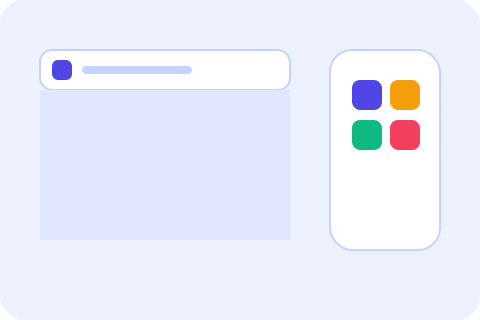
Preview
My website
Phone home screen
Actual sizes
The zip contains: favicon.ico, favicon.svg, favicon-32.png, apple-touch-icon.png, icon-192.png, icon-512.png, icon-maskable-512.png, site.webmanifest. favicon.svg is included because your source is vector.
Paste this in the <head> of your pages
Next, try one of these tools
How to use
- 1Choose a source: an image, one to three letters, or an emoji.
- 2Set the shape, colors and padding, and check the browser tab and phone previews.
- 3Press Download to get the zip with favicon.ico, PNG icons, the manifest and more.
- 4Upload the files to your site root and paste the snippet into your pages’ head.
Common uses
A new website
Make a clean icon from the first letter of the brand name in a font that matches your site.
A blog or portfolio
Turn your logo into a full favicon set in a minute, with no design software.
An installable web app
Get the 192 and 512 pixel icons and the maskable version a manifest needs.
A quick placeholder
Use an emoji while the real brand is still being designed.
Tips and limits
- Keep it simple: one or two letters or a bold symbol. Details vanish at 16 pixels.
- The Apple icon gets a solid background because iPhones fill transparency with black. With a transparent background chosen, white is used there.
- Emoji are drawn with the emoji font of the device you use, so they look different on other devices.
- After uploading, browsers may keep showing the old icon for a while. A hard refresh or a private window shows the new one.
Every icon your website needs, from one source
A favicon is the little icon in browser tabs, bookmarks and search results, and a modern site needs more than one file. Start from an image (PNG, JPG, WebP or SVG), from one to three letters, including an Arabic letter in one of 55 Google Fonts, or from an emoji. Choose a square, rounded or circular shape, colors and padding, and watch the preview in a light and a dark browser tab, on a phone home screen and at the real 16, 32 and 48 pixel sizes.
The zip holds favicon.ico (16, 32 and 48 pixels), favicon.svg for text and SVG sources, favicon-32.png, a 180 pixel apple-touch-icon with a solid background, icon-192.png, icon-512.png, a maskable icon with a safe zone, and a site.webmanifest. A ready-to-paste snippet for your page head is shown below the preview. If your logo is wider than tall, crop it to a square first, and if the source file is heavy, use the image compressor. Pick the background with the palette generator, and follow our guide on how to make a favicon for the upload steps.
Step-by-step guides
Frequently asked questions
How do I make a favicon?
Choose an image, letters or an emoji, adjust the shape and colors, and download the zip. Upload the files to your site root and paste the snippet in your head.
What files do I get?
favicon.ico, favicon-32.png, apple-touch-icon.png, icon-192.png, icon-512.png, icon-maskable-512.png, site.webmanifest, and favicon.svg for text and SVG sources.
Can I use an Arabic letter?
Yes. Pick any of the Arabic fonts in the list, and the favicon.svg includes just the glyphs it needs, so it looks the same everywhere.
What size should the source image be?
A square image of at least 512 × 512 pixels works best. SVG is ideal because it scales without blurring.
Is my image uploaded?
No. The icons are drawn and zipped in your browser. Only a text favicon contacts Google Fonts, to fetch the letters it uses.