 Adawat
Classroom noise meter
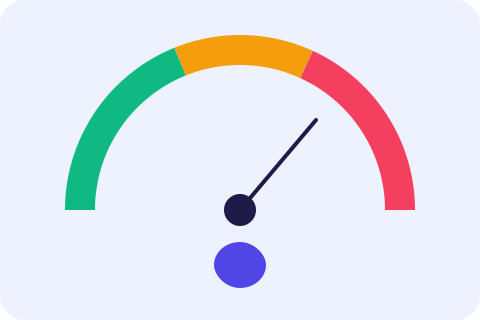
Let students see how loud the room is. A large gauge turns from green to red, and a quiet-time counter rewards the class for staying calm.
Nothing is recorded or sent
The microphone only measures how loud the room is, on this device.
The browser asks for the microphone only after you press Start. The sound is measured and thrown away straight away: nothing is recorded, stored or sent, and it is never played back.
Troubleshooting
- Permission blocked: click the lock or camera icon in the address bar and set Microphone to Allow, then reload the page. In Safari: Safari › Settings for This Website › Microphone.
- Wrong device: choose another microphone in the list above. Bluetooth headsets sometimes need a moment to switch on.
- Muted: check the mute switch on your headset, the volume of the input in your system sound settings, and any keyboard mute key.
- In use by another app: close meeting apps, recorders or other tabs that use the microphone, then press Start test again.
- On macOS and Windows, make sure the browser is allowed to use the microphone in the system privacy settings.
Next, try one of these tools
How to use
- 1Press Start and allow the microphone when the browser asks.
- 2Set the sensitivity and the level you want to treat as too loud.
- 3Optionally turn on a gentle alert for when the class stays loud for a few seconds.
- 4Show the screen to the class and watch the quiet-time counter grow.
Common uses
Independent work
Show the gauge while students work and ask them to keep it in the green.
Group work
Raise the “too loud” level a little so productive talk stays green, and use the chime for real noise.
Class competitions
Reward the longest quiet streak of the week, using the best-streak counter.
Assemblies and lunch rooms
Use a lower sensitivity in a big, echoing room so the needle reflects real changes.
Tips and limits
- Place the device where it hears the whole class, not next to a fan or a speaker, and test it once with your normal voice before students arrive.
- Set “too loud above” by watching the needle during ordinary quiet work, then moving the level just above it.
- Keep the alert gentle and the delay at eight seconds or more, so a single cough or dropped book does not trigger it.
- Laptop microphones pick up the nearest sounds most. A USB or conference microphone gives a fairer reading of the whole room.
Let the class see the noise
Asking a class to be quieter works better when they can see how loud they are. This noise meter listens through the microphone and shows the level on a large gauge that moves from green to amber to red. Because it is a picture rather than a telling-off, students often adjust themselves, and you spend your voice on teaching. A counter beside the gauge shows how long the room has stayed calm, which turns quiet into something the class can be proud of.
You control how it behaves. Raise the sensitivity if the needle barely moves in a large hall, lower it for a small room, and set the level at which the gauge counts as too loud. You can also switch on a gentle chime that sounds when the class stays loud for a number of seconds you choose. The number on the gauge is a relative level from 0 to 100, not a decibel reading, so compare it only on the same device. To check that your microphone works first, use the mic test; to see the gauge next to a timer and your students’ names, open the classroom board.
Ideas for using a noise meter without nagging are in free tools that help in the classroom.
Step-by-step guides
Frequently asked questions
Does the noise meter record or send the sound?
No. The sound is measured and discarded straight away. Nothing is recorded, stored, uploaded or played back.
Is this a decibel meter?
No. It shows a relative level from 0 to 100, which depends on your microphone and the sensitivity setting. It is meant for comparing moments in the same room.
When does the browser ask for the microphone?
Only after you press Start. If you block it by mistake, click the lock icon next to the address, allow the microphone and reload.
Why does the needle barely move?
Try a higher sensitivity, check that the right microphone is selected and that it is not muted. The troubleshooting tips below the meter list more causes.
Can I use it on a tablet or phone?
Yes, in current browsers on Android and iPhone, as long as you allow the microphone. A computer on a projector gives the biggest display.