 Adawat
Classroom screen for the projector
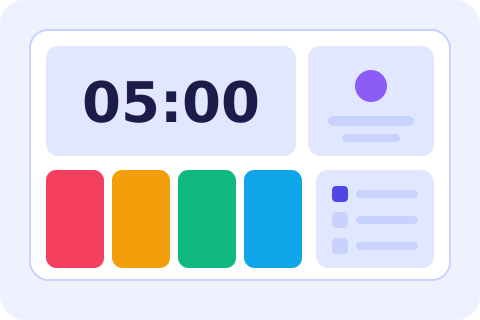
Put a timer, a random name picker, a noise meter, a work-mode signal, today’s date and a task list on one big screen that students can read from the back row.
Your students’ names never leave your device
Everything runs in your browser. Class lists are saved only on this device.
Choose and arrange the widgets
Turn widgets on or off and move them up or down. The layout is saved on this device.
Timer
Name picker
Choose a class or type some names.
Students left: 0
Type the names
Work mode
Today
Tasks
No tasks yet.
Next, try one of these tools
How to use
- 1Turn on the widgets you want and move them into the order you prefer.
- 2Choose a saved class for the name picker, and write the day’s message and tasks.
- 3Press “Full screen” on the projector or smartboard.
- 4Use the buttons or the keyboard shortcuts during the lesson; press ? to see them.
Common uses
Starting a lesson
Show the date, the message of the day and a three-item task list while students settle in.
Independent work
Start a ten-minute timer, choose “Silent work” and let the noise level show how the class is doing.
Class discussion
Pick students at random so every voice gets a turn, without anyone being called twice.
Group activities
Switch the card to “Group work” and keep the timer visible for each round.
Tips and limits
- Click the board once before using the keyboard so the shortcuts go to it. Press ? to see them, such as Space for the timer and N for the next student.
- Pick the class before the lesson. The name picker remembers who has been called until you press “Start over”.
- If your projector shows the screen dimly, switch to the dark theme in the header; the board keeps its strong contrast.
- The board asks your device to keep the screen awake while it is in use, so the projector does not go to sleep during a long task.
One screen for the whole lesson
A lesson runs on small, repeating jobs: starting a task with a time limit, calling a student, reminding the class how loud it may be, and showing what happens today. The classroom board puts those jobs on one big, high-contrast screen. Turn on only the widgets you need, put them in your order, and press Full screen on the projector or smartboard. Text and icons are sized to be read from the back row, and the layout is remembered for next time.
The timer turns amber in the last five minutes and red in the last minute, so students can feel the time without asking. The name picker draws a student from a saved class and can skip anyone who has already had a turn. The work-mode cards tell everyone whether it is silent work, whispering, group work or time to ask you. The noise level uses the microphone only once you switch it on, and the “Today” card shows the day with its Hijri and Gregorian dates. For a standalone countdown with sounds, open the timer, and for a bigger noise display use the noise meter.
New to teaching with a projector? Start with free tools that help in the classroom.
Step-by-step guides
Frequently asked questions
How do I show the board on a projector or smartboard?
Open this page on the computer connected to the projector, arrange your widgets and press Full screen. Press Esc to leave.
Does the board need the internet during the lesson?
Once the page has loaded, the timer, name picker and tasks keep working without a connection, because they run in your browser.
Are my students’ names sent anywhere?
No. Class lists are saved only in your browser on this device. Nothing is sent to a server.
Does the noise widget record the class?
No. It only measures loudness while you have the microphone switched on, and nothing is recorded or stored.
Can I change the order of the widgets?
Yes. Open “Choose and arrange the widgets”, switch widgets on or off and move them up or down. The layout is saved.