 Adawat
Free Online Tools That Help Teachers in the Classroom
4 min readBy The Adawat team
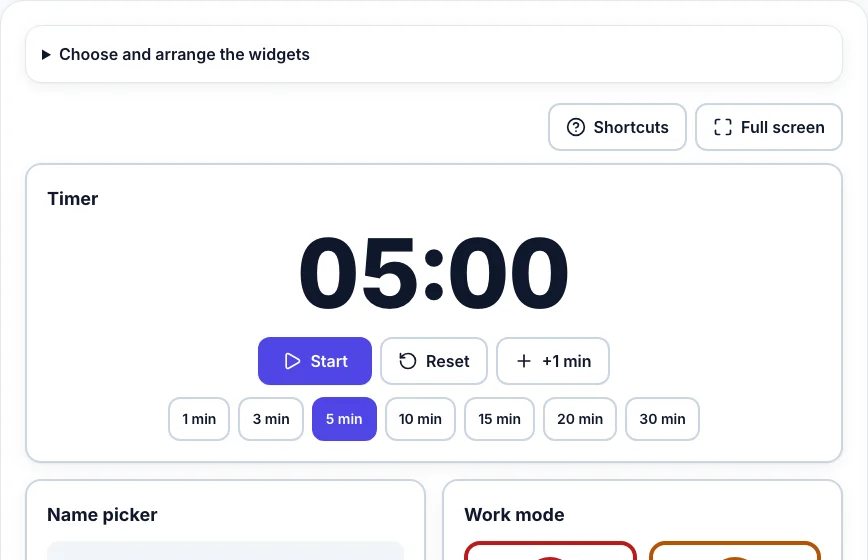
The most useful classroom tools do small jobs well: they show the time, pick a student fairly, form groups, make noise visible and put the day’s plan on the wall. You can cover all of them for free with the classroom board on the projector, the random group generator and a few others that run in the browser, with no accounts and no installation.
This guide walks through a simple routine for using them across a lesson, with the common problems and how to avoid them. You do not need all the tools at once; pick the one that solves your most annoying minute of the day and add others later.
Steps
You need a computer connected to a projector or smartboard, and a modern browser. A microphone is needed only for the noise meter.
- 1
Find the minutes you lose
Over a few lessons, notice where time disappears: settling in, choosing who answers, moving into groups, getting the class quiet again. Each of these has a tool, so start with the biggest loss rather than trying everything.
- 2
Put the plan on the screen
Open the classroom board and switch on the Today card and the task list. Write a message of the day and two or three instructions. Students who arrive early know what to do without asking you.
- 3
Time every task
Use the timer widget for each activity and let it change color in the last minutes. A visible clock reduces “how long do we have?” and makes transitions calmer. For longer blocks, the timer also has an exam mode and sounds.
- 4
Choose students fairly
Save your class once in “My classes”, then use the name picker so that every student is called in turn and nobody is skipped. Students notice when selection is fair, and they pay more attention when anyone might be next.
- 5
Form groups in seconds
For activities that need teams, use the random group generator. Decide the group size, give each group a leader if the task needs one, and show the result on the projector so the move takes a minute instead of five.
- 6
Make the noise visible
Turn on the noise level, or open the noise meter for a bigger display, and tell students the aim: keep the needle in the green. Set the “too loud” level after watching a normal quiet moment.
- 7
Signal the work mode
Click Silent work, Whisper, Group work or Ask the teacher on the board so the rule for the activity is on the screen, not repeated by you. Change it when the activity changes.
- 8
Review after a week
Keep what saved time and drop the rest. Most teachers settle on two or three tools, often the board, the timer and the group generator.
Choosing tools that respect student privacy
Class lists are personal data, so check where a tool keeps them. The tools on this site run in your browser and save class lists only on your own device; there is nothing to sign up for and no server holding names. You can export your classes to a file as a backup and import them on another computer.
The noise meter uses the microphone only to measure how loud the room is. Nothing is recorded or stored. If your school has rules about microphones in class, you can run the board without that widget.
Common problems
The projector turns off during a long task
Keep the board in full screen: it asks the device to keep the display awake while it is running. Also check the power-saving settings of the computer.
The noise meter is always red or always green
Change the sensitivity and the “too loud” level. A small room needs a lower sensitivity than a large hall, and a laptop microphone hears the nearest sounds most.
Students lose interest in the name picker
Use it for a purpose each time: to choose who explains, who reads or who checks an answer. Turn on “don’t pick the same student twice” so everyone gets a turn.
The class lists disappeared
Lists live in the browser on that device. Clearing site data or using a private window removes them, so export a backup file now and then.
Frequently asked questions
Do I need to install anything to use these tools?
No. They open in a normal browser on any computer, tablet or phone, and most keep working without an internet connection once the page has loaded.
Can students see the tools on their own devices?
They can open the same pages, but the tools are designed for the teacher’s computer on the projector. Share a flashcard deck by link if you want students to study at home.
Are the tools free for schools?
Yes. They are free to use without registration. The site is supported by ads, which never appear inside the projector view.