 Adawat
Random group generator
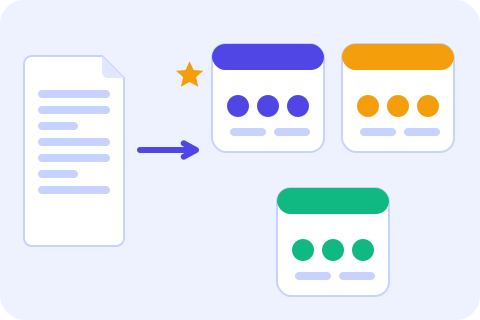
Paste your students’ names or pick a saved class, choose how many groups you need, and get fair random teams with a leader for each if you like.
Your students’ names never leave your device
Everything runs in your browser. Class lists are saved only on this device.
Groups are drawn with your browser’s secure random generator, and group sizes never differ by more than one student.
Your groups will appear here.
Next, try one of these tools
How to use
- 1Paste the names, or choose a saved class from the list.
- 2Choose the number of groups, or how many students each group should have.
- 3Press “Make groups”. Add leaders, group names or pairs to keep apart if you need them.
- 4Show the groups on the projector, copy them, print them or download an image.
Common uses
Group projects
Make teams of four for a science project, then press “Shuffle again” until the mix looks right.
Learning stations
Split the class into five groups for stations and show them on the projector in full-screen view.
Quiz games and debates
Create two or three teams for a review game and pick a leader for each with one click.
Lab partners
Use groups of two to choose partners, and keep apart two students who distract each other.
Tips and limits
- Choose “students per group” when the activity needs a fixed size, such as pairs. Choose “number of groups” when you have a fixed number of stations.
- If the class does not divide evenly, some groups get one extra student. That is the fairest split possible, and the tool picks at random which groups get it.
- Use “keep apart” sparingly. Every rule makes the shuffle harder, and too many pairs for too few groups cannot be solved.
- Download the image or print the page to hang the groups on the wall, and save the class once so you never retype the names.
Fair groups without the arguing
Splitting a class by hand takes time and rarely feels fair: the same friends end up together, someone is always picked last, and a few students argue about it. This random group generator shuffles the names with your browser’s secure random generator and deals them into groups whose sizes differ by at most one student. Paste a list, or load a saved class from “My classes”, and the groups appear in seconds.
You decide how the groups are made. Choose a fixed number of groups or a fixed group size, give each group a leader, and name the groups with numbers, colors or your own words. Tick the students who are absent so they are left out without being deleted, and list pairs who should not work together; if the rules cannot all be met, the tool tells you instead of quietly ignoring them. When you need only one student or one team, the spin wheel is quicker, and the classroom board keeps a timer next to the result.
For more ideas on grouping fairly, read how to split students into groups.
Step-by-step guides
Frequently asked questions
Is the group generator really random?
Yes. It shuffles with your browser’s secure random generator using an unbiased method, so no student is favored and no order is built in.
What happens when the class does not divide evenly?
Group sizes differ by at most one student. For example, 26 students in 4 groups gives two groups of 7 and two groups of 6.
Can I stop two students from being in the same group?
Yes. Add them as a “keep apart” pair. If the rules cannot all be met with that number of groups, the tool says so and suggests more groups or fewer pairs.
Are my students’ names uploaded?
No. The names are used inside your browser and saved only on your device if you choose to save a class. Nothing is sent to a server.
How do I leave out absent students?
Open “Absent today” and tick their names. They stay in your list, so you do not have to type them again tomorrow.
Can I show the groups on the projector?
Yes. Use “Projector view” for large text, download the groups as an image, or print them on A4.