 Adawat
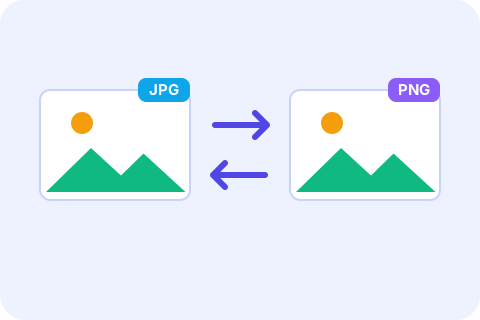
Convert images between JPG, PNG and WebP
Change the format of one photo or a whole batch. Transparent PNGs get the background color you choose when saved as JPG.
Your files never leave your device
Everything runs in your browser. Nothing is uploaded.
- 1Add files
- 2Options
- 3Download
Drag & drop images here
or tap to browse your device
Select filesYou can also paste images with Ctrl+V. HEIC, JPG, PNG or WebP · Up to 50 MB per file
Next, try one of these tools
How to use
- 1Add the images you want to convert.
- 2Pick the format you need: JPG, PNG or WebP.
- 3For JPG, choose the quality and the background color for transparent areas.
- 4Press “Convert images” and download the files, or a ZIP for several.
Common uses
A form that only accepts JPG
Convert a PNG screenshot or scan to JPG so the upload field stops rejecting it.
Web images that load faster
Convert photos to WebP for your website or blog to cut the download size.
Keep a logo transparent
Turn a WebP logo you downloaded into a PNG that design programs open without trouble.
Open pictures from the web
Convert .webp files saved from a page into JPG so any app or print shop can read them.
Tips and limits
- JPG cannot be transparent. Choose the background color before converting, because it is baked in.
- Repeatedly saving a JPG loses a little quality each time. Convert from the original file whenever you can.
- WebP is great for websites, but some older apps and upload forms do not accept it. When in doubt, send JPG.
- If your browser cannot write WebP, the tool saves JPG instead and tells you in the results.
Switch between JPG, PNG and WebP
Each format has a job. JPG is the universal choice for photos, PNG keeps sharp edges and transparency, and WebP is a newer web format that is usually smaller than both. Pick the one you need and convert one image or a whole batch. For JPG and WebP you control the quality, and when you save a transparent picture as JPG you choose the color that fills the see-through areas. Dedicated pages open with the format already set: PNG to JPG, JPG to PNG, WebP to JPG, JPG to WebP, WebP to PNG and PNG to WebP.
Converting does not improve a picture: turning a small JPG into a PNG will not add detail, and it will usually make the file bigger. Use conversion to satisfy a requirement, such as a form that only takes JPG, or to save space. To shrink the result further, try the image compressor. iPhone photos in HEIC have their own tool, HEIC to JPG, described in our iPhone photo guide.
Step-by-step guides
Frequently asked questions
How do I convert an image to JPG, PNG or WebP?
Add the image, choose the output format, set the quality if it applies, and press “Convert images”. Then download the result.
What happens to transparent areas when I save as JPG?
JPG has no transparency, so transparent pixels are filled with the background color you choose, white by default.
Which format is best for photos?
JPG is the most compatible, and WebP is smaller at similar quality when the destination supports it.
Does converting reduce quality?
JPG and WebP are lossy, so each save at a quality below 100% gives up a little detail. PNG is lossless.
Can I convert many images at once?
Yes. Add as many as you like and download the converted files together in one ZIP.
Are my images uploaded?
No. Conversion runs in your browser, so your images stay on your device.